
Music Zoom shows sheet music one line at a time. This page covers setup and use of Music Zoom.
Something missing? Email info@musiczoom.app.
Setting up a piece
- Add a song. On the main screen, tap + and give it a title.
- Add the pages. In the song, tap +, then Take Photo or Choose Photo. Shoot the page flat, straight on and in even light. Your original image is never changed.
- For easiest viewing, I recommend scanning your music with an app or scanner.
- Mark the lines. Put one finger on a line’s top-left corner and another on its bottom-right, then tap Use This Line. Mark lines in the order you read them. Undo Last Line fixes mistakes.
Your first song takes some extra time. It gets faster the more you practice.
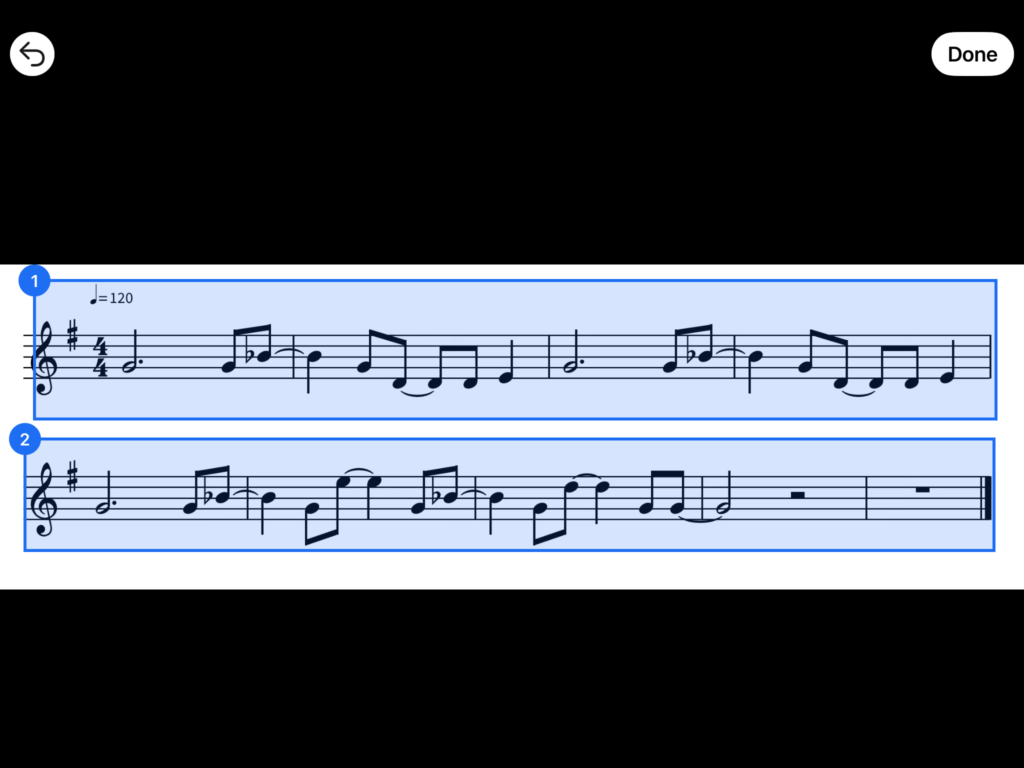
Playing Music
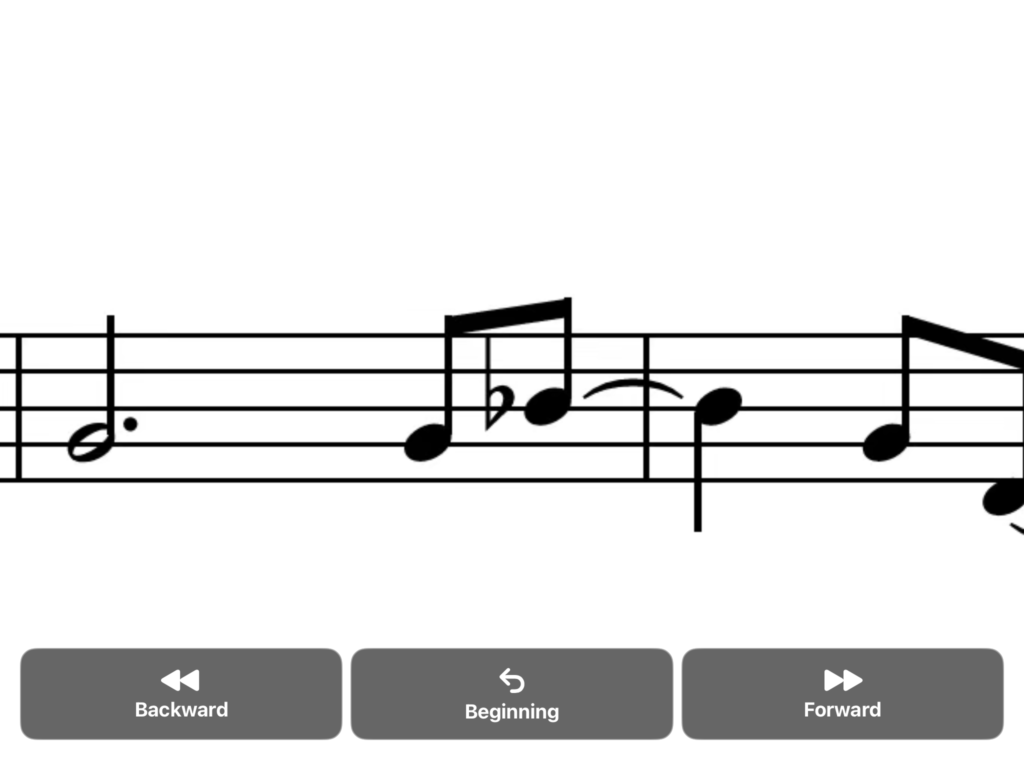
Tap Start Practicing. Your lines appear as one strip, each the same height.
- Forward, Backward and Beginning move through the music. You can also drag it with your finger.
- Tap the music to hide the top bar. Hide Buttons hides the buttons at the bottom.
- Display sets the staff size for each song, turns on inverted colors, and picks a black or white background.
- Scrolling sets how far and how fast each step moves.
Footswitch
Any Bluetooth page-turner pedal or keyboard that sends arrow keys works. Right or down moves forward, and left or up moves back.
Set the pedal to its arrow-key mode and pair it in Settings > Bluetooth.
It works whenever a song is open for practice.
Music Zoom has been tested with the following footswitches:
Repeats
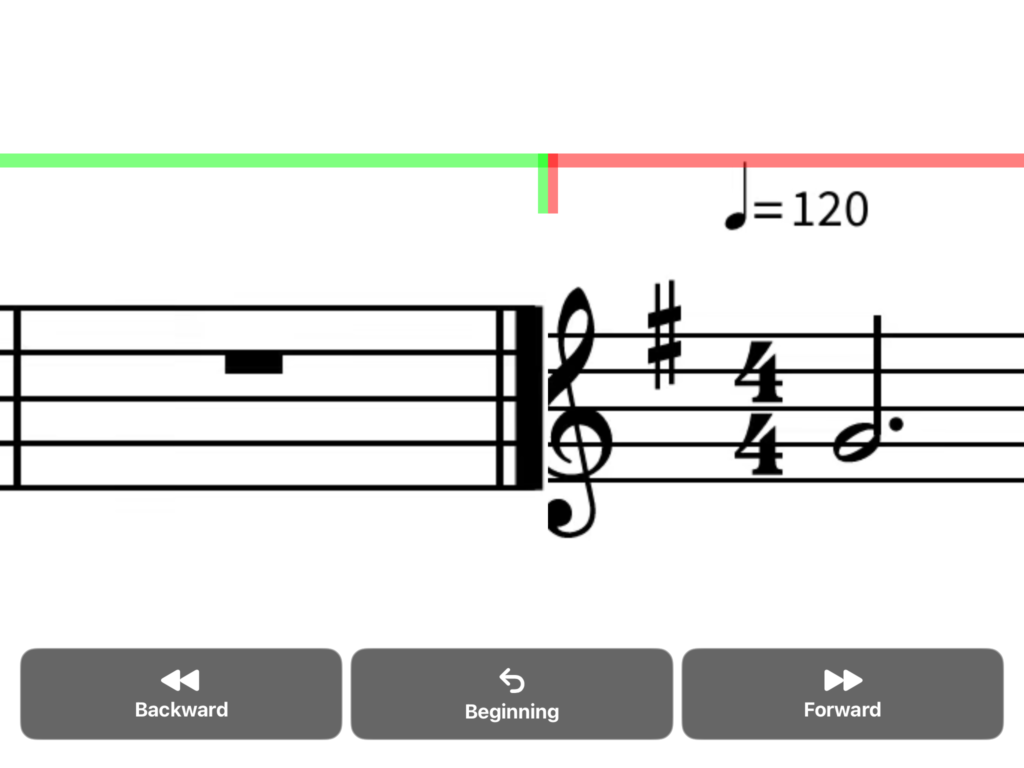
Tap Repeat, then Add a Repeat. Tap where the repeat starts, drag the yellow line to the exact spot, and tap Confirm. Do the same for the end. The section then plays twice in order, with a green bracket the first time through and a red one the second. Repeats can start mid-line, cross pages and sit inside other repeats. Remove a Repeat takes one out.
First and second endings, D.C., D.S. and codas aren’t supported yet.
Writing on your music
Tap Draw for a pen and a highlighter in six colours and five widths, plus erase and undo. Marks belong to the page, not the line, so they stay put if you re-mark your lines, and they show in both passes of a repeat.
Accessibility
Music Zoom is designed with low-vision users in mind.
VoiceOver can reach the app’s buttons and settings. The music itself is an image, so VoiceOver can’t read it.
Please note that Music Zoom is image-based. It cannot recognize notation, play music out loud or produce music braille.
Privacy
There are no accounts, ads, analytics or tracking. Music and markings are stored on the iPad and, if iCloud is on, in the private iCloud storage of the Apple Account on that iPad.